



eClass Parent App Parent Communication System Installation and Usage IntroductionTo further improve the efficiency of home-school communication, our school will distribute school information electronically through the eClass Parent App. Parents can use the system to check their children's school attendance times, school calendars, school notices, and electronic payment account balances. For more information on how to use the eClass Parent App, please refer to the "ECLASS PARENT APP Introductory Video" . |
A: Notes on signing electronic notices
-
Parents, please keep your password safe. This parent account will be valid until your child graduates .
-
Parents can sign the electronic notice using a mobile device pre-installed with the eClass Parent App (up to 5 mobile devices can be installed). Parents can also sign the notice directly through the school intranet (eClass platform) (www.cccss.edu.hk).
-
The school recommends that one parent consistently sign the confirmation slip to avoid coordination issues. If a parent needs to modify the content of the signed confirmation slip, please contact the school administration office.
-
Unless otherwise specified, parents are requested to sign any notices issued by the school within two days of the date of issuance (by 23:59) .
For example: An electronic notice was issued on March 1, with a deadline of 23:59 on March 3 for signing.
eClass will automatically send a push notification at 10:00 AM on the signing deadline (March 3rd) to remind parents who have not yet signed to do so. To improve school administrative efficiency, we kindly request your cooperation in signing the notice as soon as possible. -
After parents sign, please inform your child of the contents of the notice to avoid misunderstandings.
-
If parents are unable to successfully install the eClass Parent App, please call the eClass Parent Support Hotline at 39133211.
-
If you encounter a password error or are unable to log in, please call 27198598 to contact the school secretary.
B: Installation and Login Methods
|
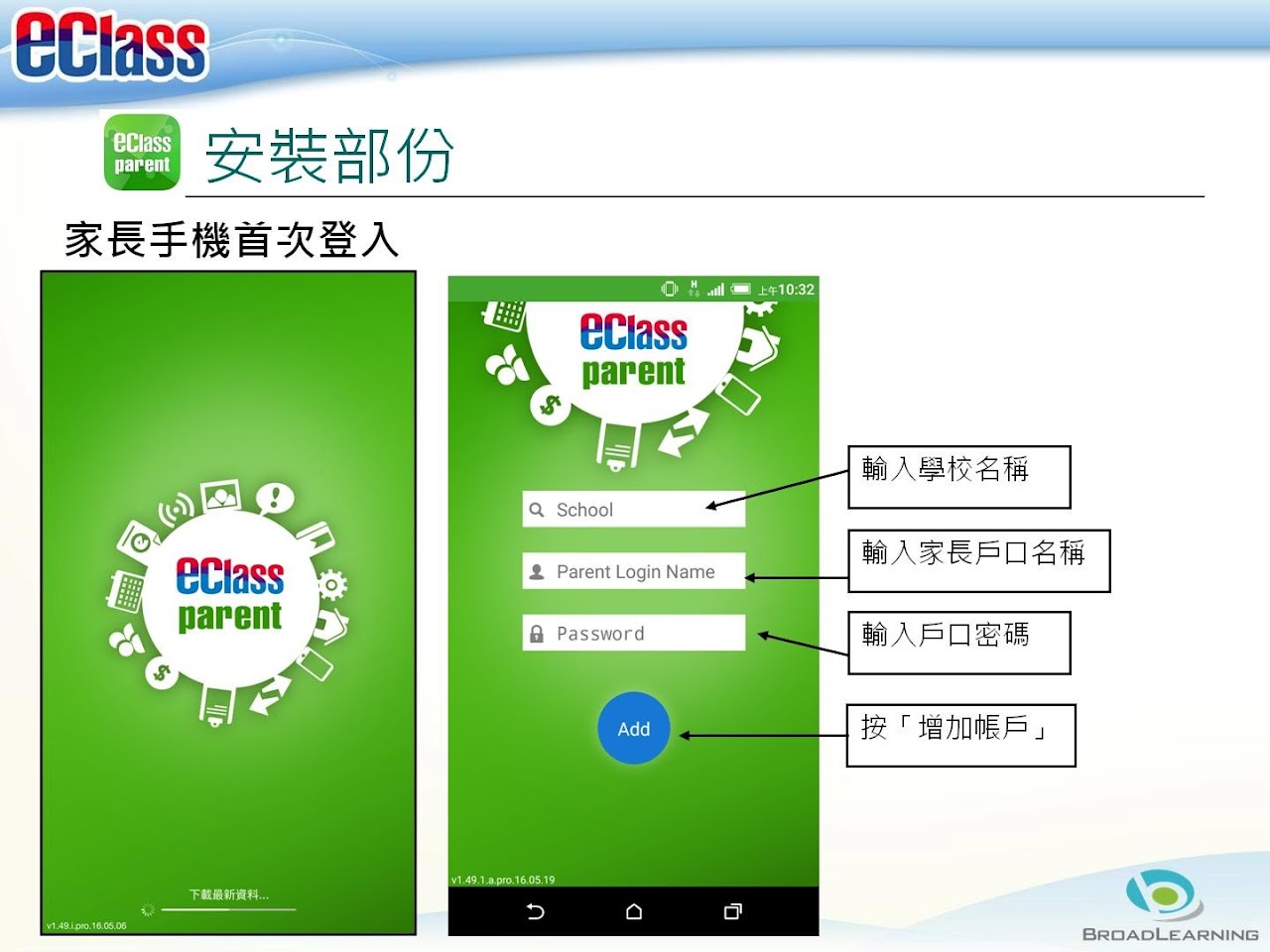
After successful installation, log in as a parent to access the following information: School: Cheng Chi Chung Middle School, Hang Hau District, Sai Kung, New Territories Parent login name: Password: First and last letters, then four numbers. Example: a1234b
|
.png) |
.png) |
.png) |
C: Methods for signing electronic notices on mobile phones or tablets
|
.jpg) |